This blog post covers one of the TMDL properties. As you all know, we can create a entire Power BI semantic model using TMDL scripts. TMDL is nothing but the Tabular Model Definition Language, Microsoft introduced for better readiability and management of the models. It also enables to create a model programmatically and leverage Gen AI to create tables in model. We were using TMSL which is Tabular Model Scripting Language to access and manage semantic models. TMSL is still available.
We have a TMDL view in Power BI Desktop to execute TMDL scripts. It always comes with createorReplace command to run TMDL which will create a property of the semantic model to change
Quick Glance of Power BI Aggregations
Let me explain the following scenario. You may have a direct query models or composite models and you may think of using Power BI user defined aggregated tables and manage aggregations to improve the performance.
Example setup with Contoso Database
- Following tables are in the model – Sales, Customer and Product
- Sales is a fact table which has more than 1 million records which is in direct query. This table can still go to import mode but based on the scenarios. Currently assume this is in direct query mode
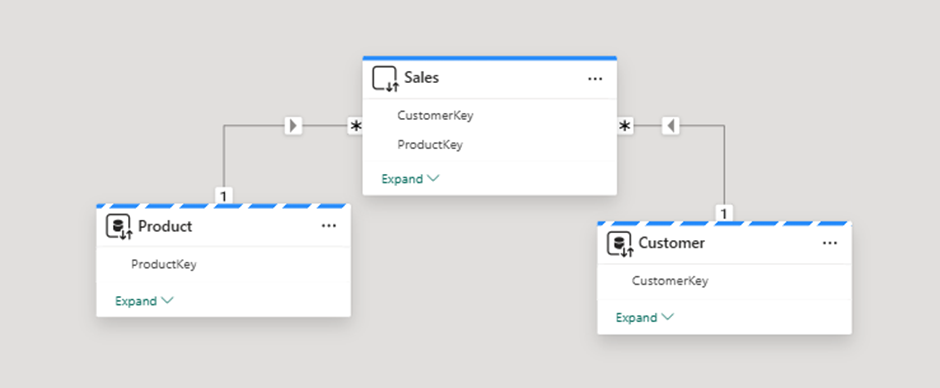
User Defined Aggregations helps to improve the performance of the semantic model. Aggregate tables should be in import. Aggregate tables should be designed in a way to reduce the rows and granularity and fit into memory or import.
Direct Query’s performance is generally slow since all the queries should go to DB execute there and bring the results back to Power BI. Direct Query performance is based on the underlying DB performance.
All other dimensions should go into dual mode and fact table should be in direct query. To explain, created a aggregate table which is aggregated by Product ID for a sales amount.
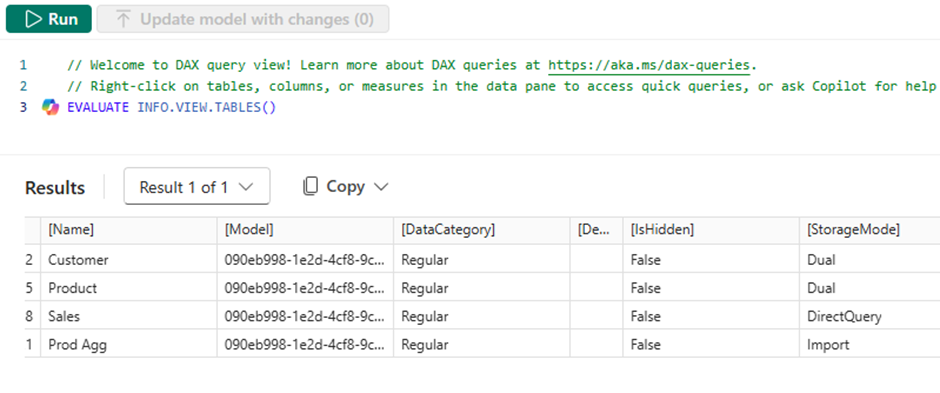
Manage Aggregations Setup
We need to go to model view and choose manage aggregations on the import aggregate table.
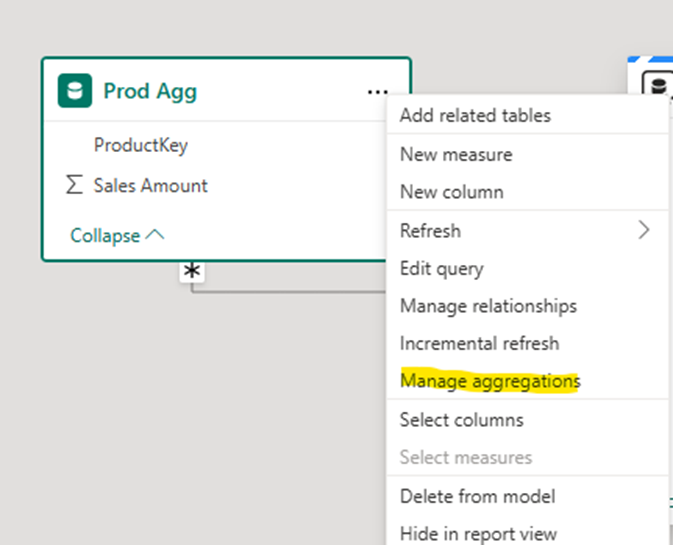
It will give a view where we need to map the fields.
Manage aggregations help intelligentially route the queriers to aggregate tables instead of going to transaction tables which is huge and in direct query model.
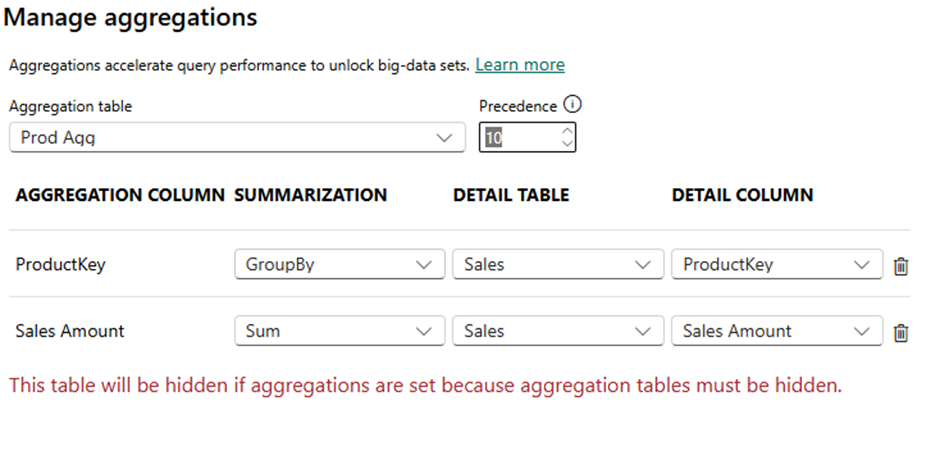
- We need to perform the mappings
- Set the Precedence value. If you have multiple aggregate tables created with different combinations, precedence helps to prioritize table.
Hope you have a better understanding of the user defined aggregations or Power BI aggregations at high level. The configuration like mapping and precedence which we do in GUI can be handle in TMDL script itself.
TMDL properties for Power BI Aggregations
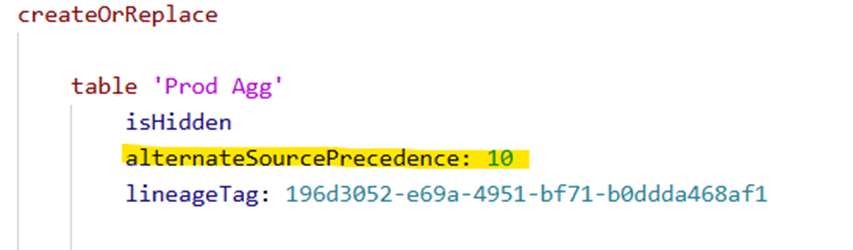
Precedence -> alternateSourcePrecedence which is a Table property.
The Aggregation column and summarization is a column level property.
alternateOf
              summarization: sum
              baseColumn: Sales.'Sales Amount'
The complete table TMDL with aggrgations
createOrReplace

    table 'Prod Agg'
        isHidden
        alternateSourcePrecedence: 10
        lineageTag: 196d3052-e69a-4951-bf71-b0ddda468af1

        column ProductKey
            dataType: int64
            isHidden
            formatString: 0
            sourceProviderType: int
            lineageTag: aa46ff1f-6040-4500-919b-fb238fc5ae78
            summarizeBy: none
            sourceColumn: ProductKey

            alternateOf
                baseColumn: Sales.ProductKey

            changedProperty = IsHidden

            annotation SummarizationSetBy = Automatic

        column 'Sales Amount'
            dataType: double
            isHidden
            sourceProviderType: decimal(38, 5)
            lineageTag: 79990d7b-55e1-4d8c-bb5a-cb5e16decb68
            summarizeBy: sum
            sourceColumn: Sales Amount

            alternateOf
                summarization: sum
                baseColumn: Sales.'Sales Amount'

            changedProperty = IsHidden

            annotation SummarizationSetBy = Automatic

            annotation PBI_FormatHint = {"isGeneralNumber":true}

        partition 'Prod Agg' = m
            mode: import
            source =
                    let
                        Source = Sql.Databases("serverName"),
                        Contoso = Source{[Name="Contoso"]}[Data],
                        dbo_sales = Contoso{[Schema="dbo",Item="sales"]}[Data],
                        #"Added Custom" = Table.AddColumn(dbo_sales, "Sales Amount", each [UnitCost] * [Quantity]),
                        #"Changed Type" = Table.TransformColumnTypes(#"Added Custom",{{"Sales Amount", type number}}),
                        #"Grouped Rows" = Table.Group(#"Changed Type", {"ProductKey"}, {{"Sales Amount", each List.Sum([Sales Amount]), type nullable number}})
                    in
                        #"Grouped Rows"

        changedProperty = IsHidden

        annotation PBI_NavigationStepName = Navigation

        annotation PBI_ResultType = Table

Leave a Reply